Export to .docx
- Confirm the blocks you want included are checked in the outline.
- Click Export in the top bar.
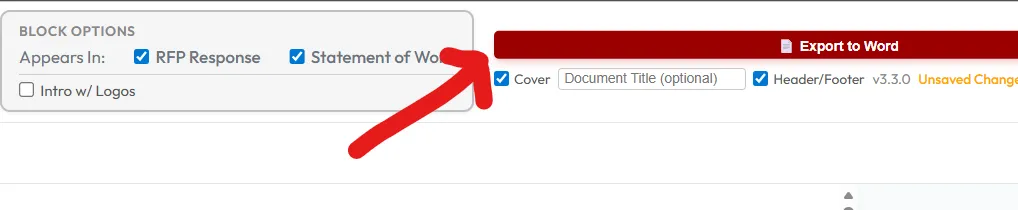
- Choose what to include with the export (see below).
- Set the file name and choose Export.
The exported file is a standard .docx — open in Word, Google Docs, or Pages.
Cover, header, and footer options
Section titled “Cover, header, and footer options”At export time you can opt in to administrator-approved extras:
- Cover page — uses your firm’s approved cover (logo, title block, recipient info).
- Header / footer — adds approved branding and page numbering to every page.
These options are managed by an administrator and pulled in fresh each time you export, so you always get the latest approved version.
What gets included
Section titled “What gets included”- All checked blocks, in outline order.
- Headings, lists, tables, and images embedded in blocks.
- Optional cover page and header/footer if selected at export.
What doesn’t
Section titled “What doesn’t”- Unchecked blocks.
- Comments or AI-draft annotations (these are author-only).
- External links remain as links — they aren’t fetched or inlined.