Connect your storage
RFP Builder keeps your work in a storage backend that you control. On first launch, local storage is enabled by default, but if your administrator has set up your shared storage, you can connect and share blocks with your team.
- Local browser storage — default, fastest to start; data stays local to your device.
- Cloud (Firebase / Cloudflare) — share blocks across teammates and devices. Your administrator will provision this, you just need to login.
- Open the app.
- Look for “Local” or “Shared” on the left side, above the block library.
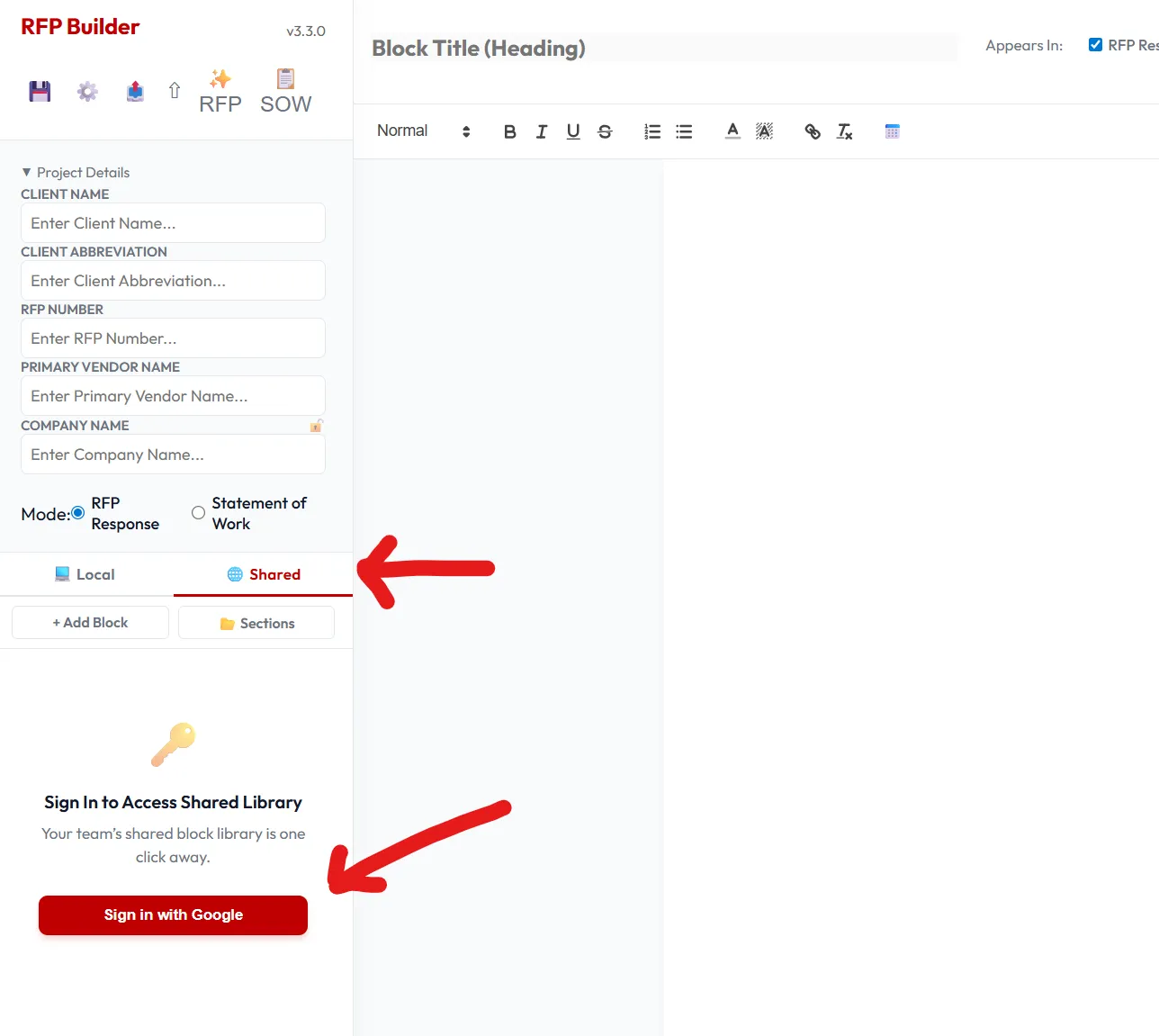
- Pick Local storage to work on your own blocks or click Shared and then “Sign in with Google” to join your organization’s shared block library.
- The Shared tab will populate when you’re connected.
Switching between
Section titled “Switching between”You can use blocks from local storage or shared storage and mix-match blocks for your response as-needed.